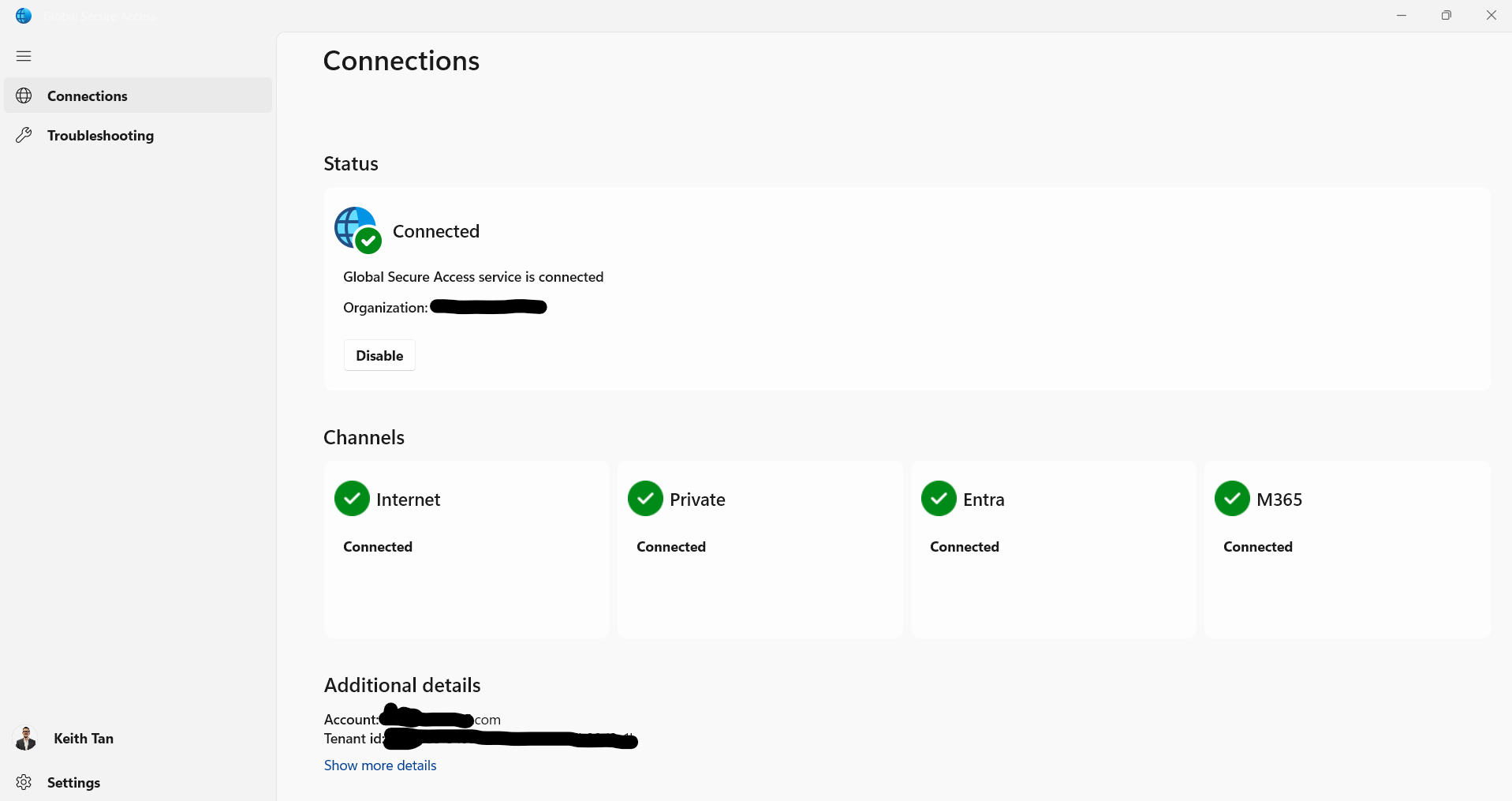
Global Secure Access
This article outlines how to deploy Global Secure Access (GSA) with Intune and install it silently on Windows devices.
What is GSA?
Global Secure Access (GSA) is a Microsoft solution that helps keep your organization’s network safe when employees connect from anywhere. It combines three things:
- Identity (who you are),
- Device security (is your device trusted?),
- Network access (what resources you can reach).
Prerequisite
- Microsoft Entra environment with Global Secure Access enabled.
- Devices must be Entra joined or hybrid joined.
- Admin role in Entra. Learn more.
- Access to Intune.
- GSA client installer.
- Packaging tool
- Security Group (Device or Users)
Download the GSA Client
-
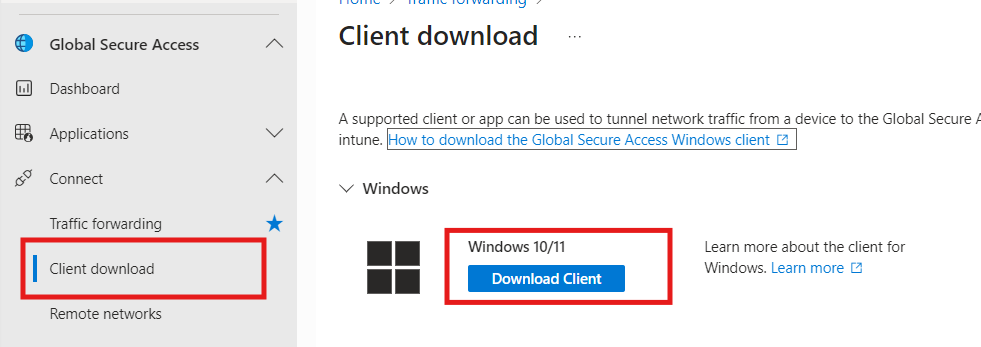
Sign in to the Microsoft Entra admin center.
-
Navigate to Global Secure Access > Connect > Client Download.
Packaging
-
Download the
IntuneWinAppUtil.exeGitHub.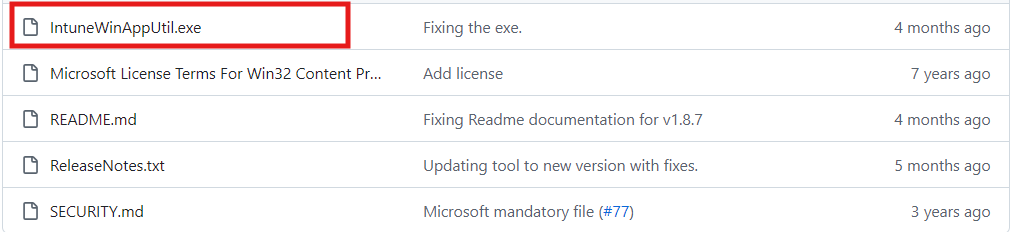
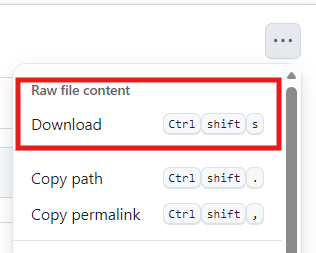
-
Copy the script below and save it as
.ps1file.PowerShell
GlobalSecureAccessClient.ps1# Create log directory and log helper$logFile = "$env:ProgramData\GSAInstall\install.log"New-Item -ItemType Directory -Path (Split-Path $logFile) -Force | Out-Nullfunction Write-Log {param([string]$message)$timestamp = Get-Date -Format "yyyy-MM-dd HH:mm:ss"Add-Content -Path $logFile -Value "$timestamp - $message"}try {$ErrorActionPreference = 'Stop'Write-Log "Starting Global Secure Access client installation."# IPv4 preferred via DisabledComponents registry value$ipv4RegPath = "HKLM:\SYSTEM\CurrentControlSet\Services\Tcpip6\Parameters"$ipv4RegName = "DisabledComponents"$ipv4RegValue = 0x20 # Prefer IPv4 over IPv6$rebootRequired = $false# Ensure the key existsif (-not (Test-Path $ipv4RegPath)) {New-Item -Path $ipv4RegPath -Force | Out-NullWrite-Log "Created registry key: $ipv4RegPath"}# Get current value if present$existingValue = $null$valueExists = $falsetry {$existingValue = Get-ItemPropertyValue -Path $ipv4RegPath -Name $ipv4RegName -ErrorAction Stop$valueExists = $true} catch {$valueExists = $false}# Determine if we must change it$expected = [int]$ipv4RegValue$needsChange = -not $valueExists -or ([int]$existingValue -ne $expected)if ($needsChange) {if (-not $valueExists) {# Create as DWORD when missingNew-ItemProperty -Path $ipv4RegPath -Name $ipv4RegName -PropertyType DWord -Value $expected -Force | Out-NullWrite-Log ("IPv4Preferred value missing. Created '{0}' with value 0x{1} (dec {2})." -f $ipv4RegName, ([Convert] ::ToString($expected,16)), $expected)} else {# Update if differentSet-ItemProperty -Path $ipv4RegPath -Name $ipv4RegName -Value $expectedWrite-Log ("IPv4Preferred value differed. Updated '{0}' from 0x{1} (dec {2}) to 0x{3} (dec {4})." -f $ipv4RegName, ([Convert]::ToString([int]$existingValue, 16)), [int]$existingValue, ([Convert]::ToString ($expected,16)), $expected)}$rebootRequired = $true} else {Write-Log ("IPv4Preferred already set correctly: {0}=0x{1} (dec {2}). No change." -f $ipv4RegName, ([Convert]::ToString ($expected,16)), $expected)}# Resolve installer path$ScriptRoot = if ($PSScriptRoot) { $PSScriptRoot } else { Split-Path -Parent $MyInvocation.MyCommand.Path }$installerPath = Join-Path -Path $ScriptRoot -ChildPath "GlobalSecureAccessClient.exe"Write-Log "Running installer from $installerPath"if (Test-Path $installerPath) {$installProcess = Start-Process -FilePath $installerPath -ArgumentList "/quiet" -Wait -PassThruif ($installProcess.ExitCode -eq 1618) {Write-Log "Another installation is in progress. Exiting with code 1618."exit 1618} elseif ($installProcess.ExitCode -ne 0) {Write-Log "Installer exited with code $($installProcess. ExitCode)."exit $installProcess.ExitCode}Write-Log "Installer completed successfully."} else {Write-Log "Installer not found at $installerPath"exit 1}if ($rebootRequired) {Write-Log "Reboot required due to registry value creation or update."exit 3010 # Soft reboot required} else {Write-Log "Installation complete. No reboot required."exit 0}}catch {Write-Log "Fatal error: $_"exit 1603}importantThe Global Secure Access client and the PowerShell script must have the same filename and be located in the same directory on your machine. For example:
GlobalSecureAccessClient.ps1GlobalSecureAccessClient.exe
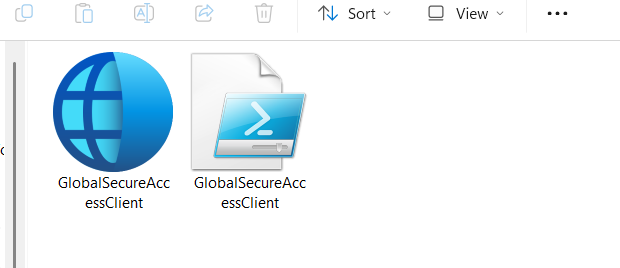
-
Run the
IntuneWinAppUtil.exeand follow the prompt:Please specify the source folder: C:\Users\Keith\Desktop\WindowGSAInstallerPlease specify the setup file: GlobalSecureAccessClient.ps1Please specify the output folder: C:\Users\Keith\Desktop\WindowGSAInstallerDo you want to specify catalog folder: N
Deploy GSA with Intune
-
Navigate to Intune Admin Center
-
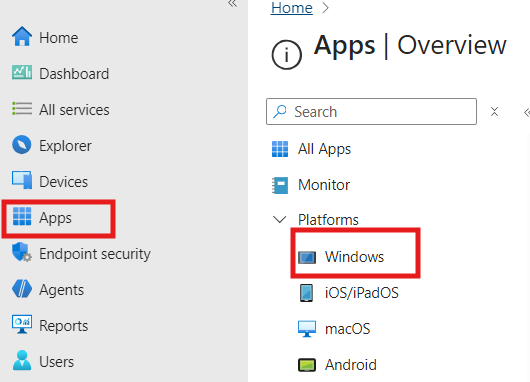
Select Apps > Windows > Create.
-
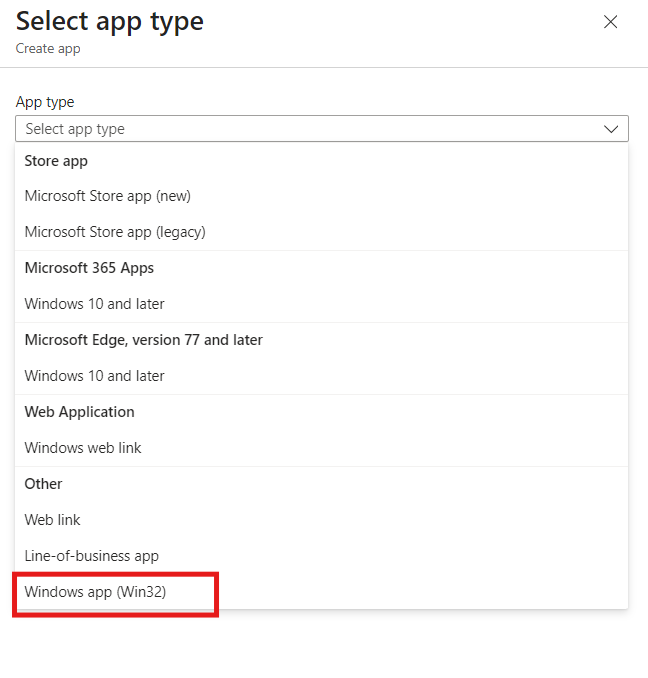
On the Select app type pane.
-
Under the Select app types > choose Windows app (Win32) and click Select.
-
Click Select app package file option.
-
Click the blue folder to upload the
.intunewinfile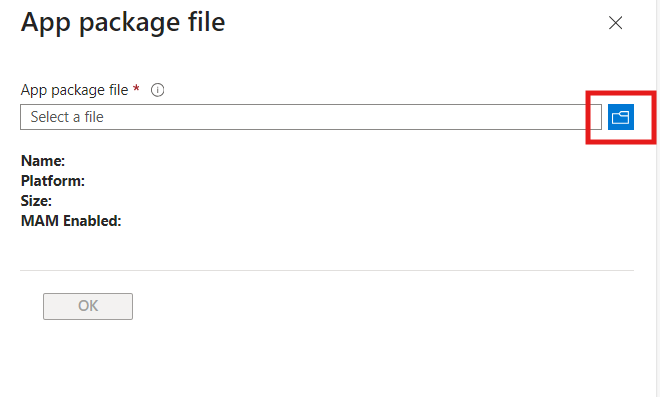
-
Complete the following steps:
-
Fill in the details on the app informantion.
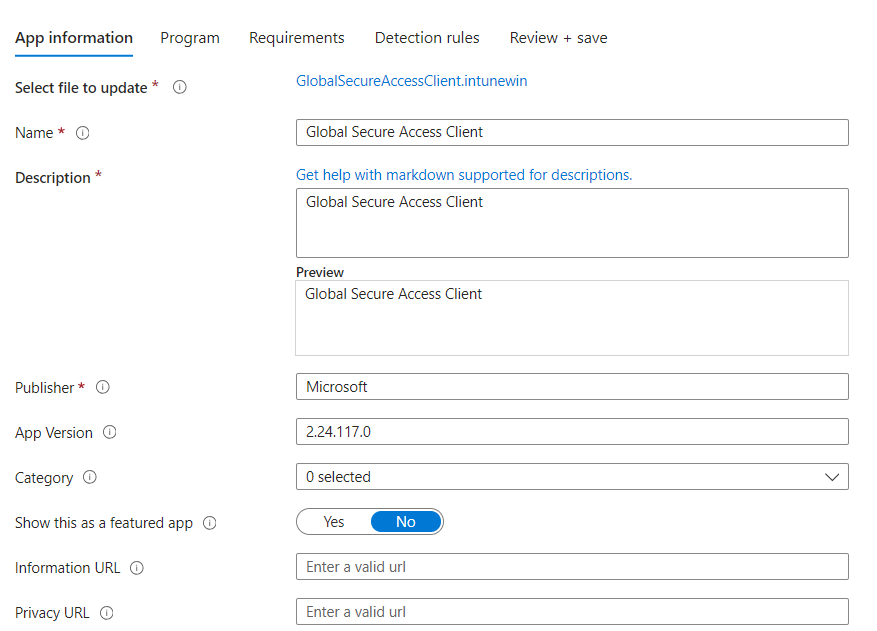
-
Specify install/uninstall commands.
powershell.exe -ExecutionPolicy Bypass -File GlobalSecureAccessClient.ps1"GlobalSecureAccessClient.exe" /uninstall /quiet /norestart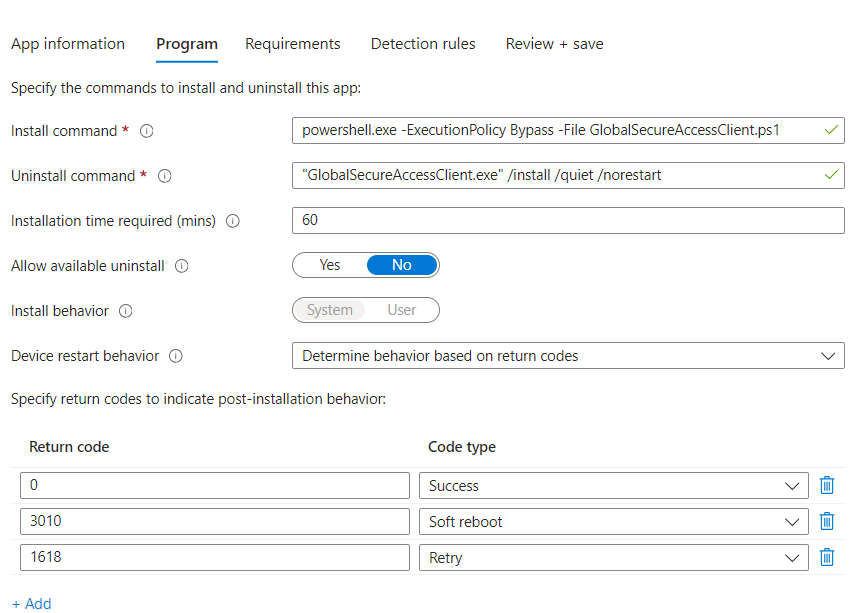
-
Define OS and architecture
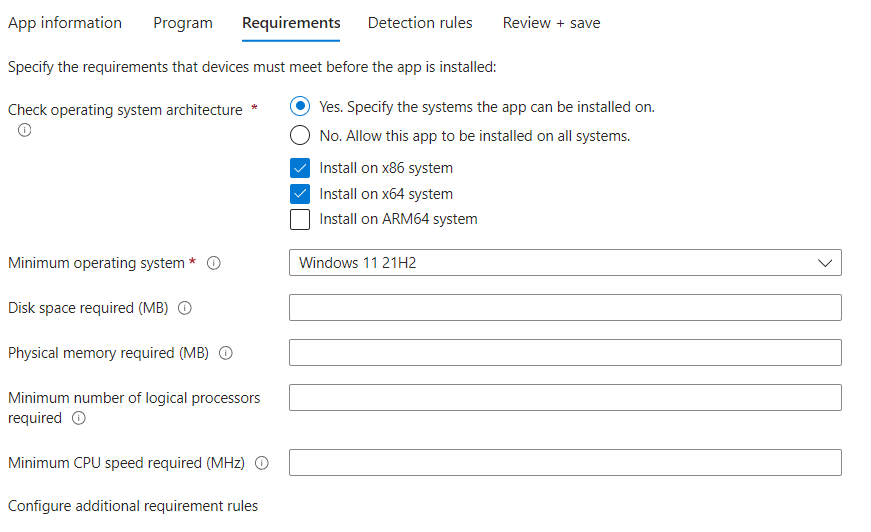
-
Configure detection rule appropriately
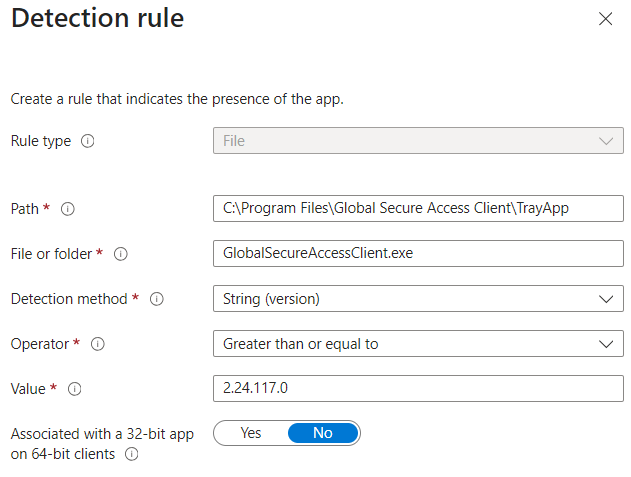
-
-
Click OK, then Next twice to reach Assignments
-
Under Required click +Add group. Select a group of users or devices and click Select.
-
Click Next. Click Create.
Monitor Installation
Check deployment status via Intune Admin Center:
- Go to Windows apps list, find the deployed app
- Use the Monitor dropdown for status options.
When Installation Is Successful
Taskbar

GSA User Interface